
In this guide, we are going to learn how to install Apache Guacamole on Ubuntu 24.04. Apache Guacamole is a clientless HTML5 web based remote desktop gateway which provides remote access to servers and desktops through a web browser. It supports standard protocols like VNC, RDP, and SSH.
Table of Contents
Install Apache Guacamole on Ubuntu 24.04
Guacamole is made up of two parts;
guacamole-server, which provides the guacd proxy and all the native, server-side components required by Guacamole to connect to remote desktops.
guacamole-clientwhich provides the client to be served by the servlet container which is usuallyTomcat.
You need to install both of these components to setup Apache Guacamole web-based remote desktop client.
Ensure your system package cache is up-to-date;
Check Available Version of Guacamole on Default Ubuntu Repos
Guacamole is available on the default Ubuntu 24.04 repositories. However, available version is not up-to-date;
To get the latest release version of Guacamole running on Ubuntu 24.04, you need to build it from the source.
Install Required Build Tools
To install guacamole-server, you need to build it from the source. This, therefore, requires that you need install the required build tools before you can start to build guacamole-server component;
A comprehensive description of these dependency tools is available on required dependencies section.
Building Guacamole-Server on Ubuntu 24.04
To build guacamole-server, download the latest source archive tarball from Guacamole releases page. Guacamole 1.5.5 is the latest release version as of this writing. You can simply run the command below;
Replace the value of the VER variable with the current release of Guacamole.
Once the download is done, extract the source tarball.
Navigate to guacamole server source code directory;
Run the
configure script to check if any required dependency is missing and to adapt Guacamole server to your system.Ubuntu 24.04 ships with OpenSSL 3.x and Guacamole requires openssl 1.x to successfully compile and install. The warning related to this are treated as errors and thus the compilation process will fail. As a result, you can disable the Warnings from being treated as errors and compile Guacamole on Ubuntu 24.04.
For more configure options, run,
./configure --help.Pay attention to out of the
configure script.Compile and install Guacamole Server on Ubuntu 24.04;
Next, run the
ldconfig command to create the necessary links and cache to the most recent shared libraries found in the guacamole server directory.Start and enable guacd (Guacamole Daemon) to run on boot after the installation.
To check the status;
Apache Tomcat is used to serve guacamole client content to users that connects to guacamole server via the web browser. To install Tomcat, run the command below;
Guacamole client, as of this writing is not compatible with latest releases of Apache Tomcat and hence, still requires Apache Tomcat9.
While you can install Apache Tomcat9 by building from the source as outlines in this guide;
in this guide, we will use Ubuntu 22.04 Jammy Updates universe repos to install Apache Tomcat9;
Install Ubuntu 22.04 Jammy updates universe repos on Ubuntu 24.04;
Run system update;
Install Apache Tomcat9 on Ubuntu 24.04;
Disable Ubuntu 22.04 Jammy updates universe repos and run system package cache update;
Tomcat9 is started and enabled to run on system boot upon installation.
If UFW is running, allow Tomcat through it.
Installing Guacamole Client on Ubuntu 24.04
guacamole-client contains provides web application that will serve the HTML5 Guacamole client to users that connect to your server. The web application will then connect to guacd on behalf of connected users in order to serve them any remote desktop they are authorized to access.
Create Guacamole configuration directory;
Guacamole client can be installed from a source code or from ready binary. Binary installation is used in this demo. Download Guacamole-client from Guacamole releases page for the respective latest version (v1.5.5 as of this writing) and store it in the configuration directory created above;
Create a symbolic link of the guacamole client to Tomcat webapps directory as shown below;
Restart Tomcat to deploy the new web application;
Restart guacd daemon as well;
Configure Apache Guacamole on Ubuntu 24.04
Guacamole has two major configuration files;
/etc/guacamole which is referenced by the GUACAMOLE_HOME environment variable and /etc/guacamole/guacamole.properties which is the main configuration file used by Guacamole and its extensions.There are also guacamole extensions and libraries configurations. You need to create the directories for these configs;
Set the guacamole home directory environment variable and add it to
/etc/default/tomcat9 configuration file.To define how Guacamole connects to
guacd, create the guacamole.properties file under /etc/guacamole directory with the following content.After that, save the configuration file and link the Guacamole configurations directory to Tomcat servlet directory as shown below.
Guacamole’s default authentication method reads all users and connections from a single file called
user-mapping.xml. In this file,you need to define the users allowed to access Guacamole web UI the servers to connect to and the method of connection.Therefore, run the command below to create this file with the following contents.
Be sure to replace password with your strong password.
Generate the MD5 hash of passwords for the user used for logging into Guacamole web user interface. Replace you password accordingly;
If you need to explicitly define usernames and passwords, add the parameters;
Save and exit the configuration file.
You can check how to enable Guacamole OpenLDAP Authentication;
Restart both Tomcat and guacd to effect the changes.
Be sure to check the syslog,
/var/log/syslog or /var/log/tomcat9/CATALINA-* for any issues.Accessing Apache Guacamole from Browse
Once Guacamole is setup, you can access it from web browser using the address
http://server-IP:8080/guacamole.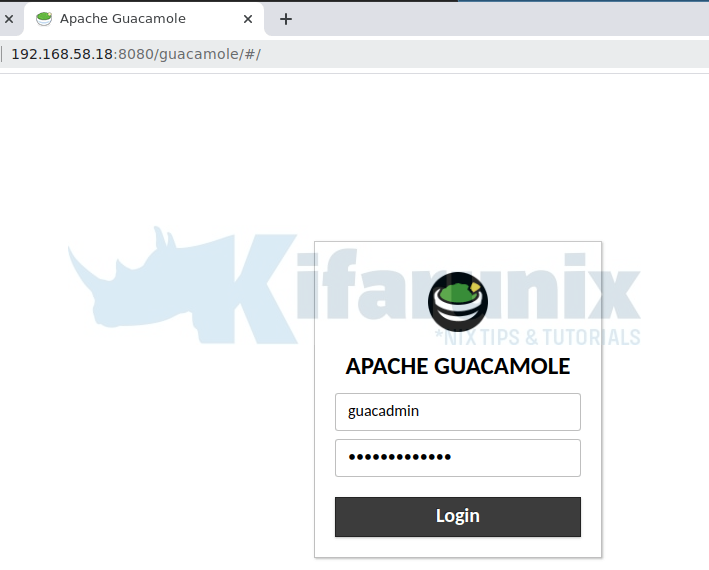
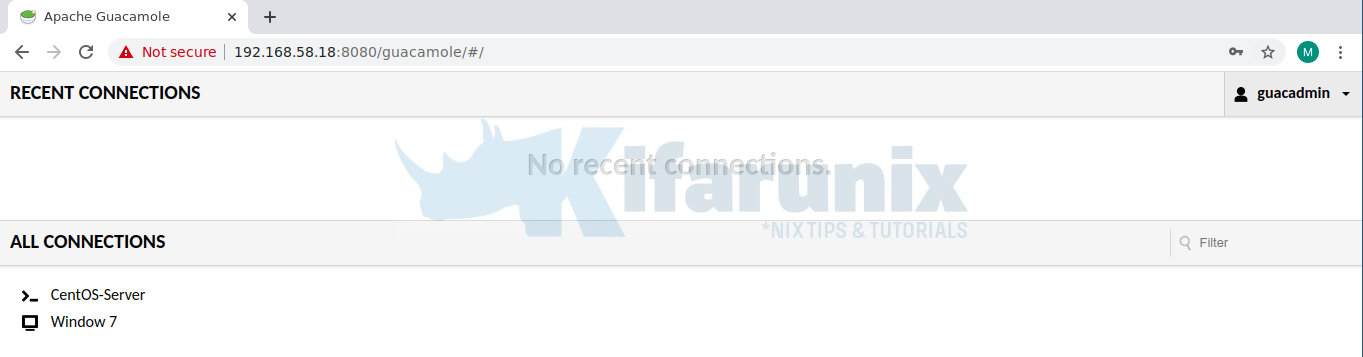
Upon successful login, you get to Apache Guacamole web dashboard and you should be able to see the added connections.
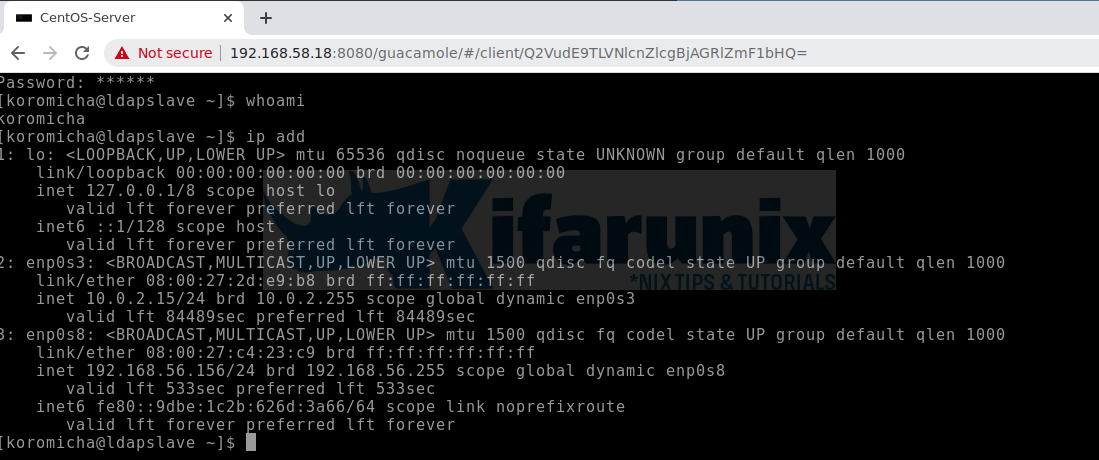
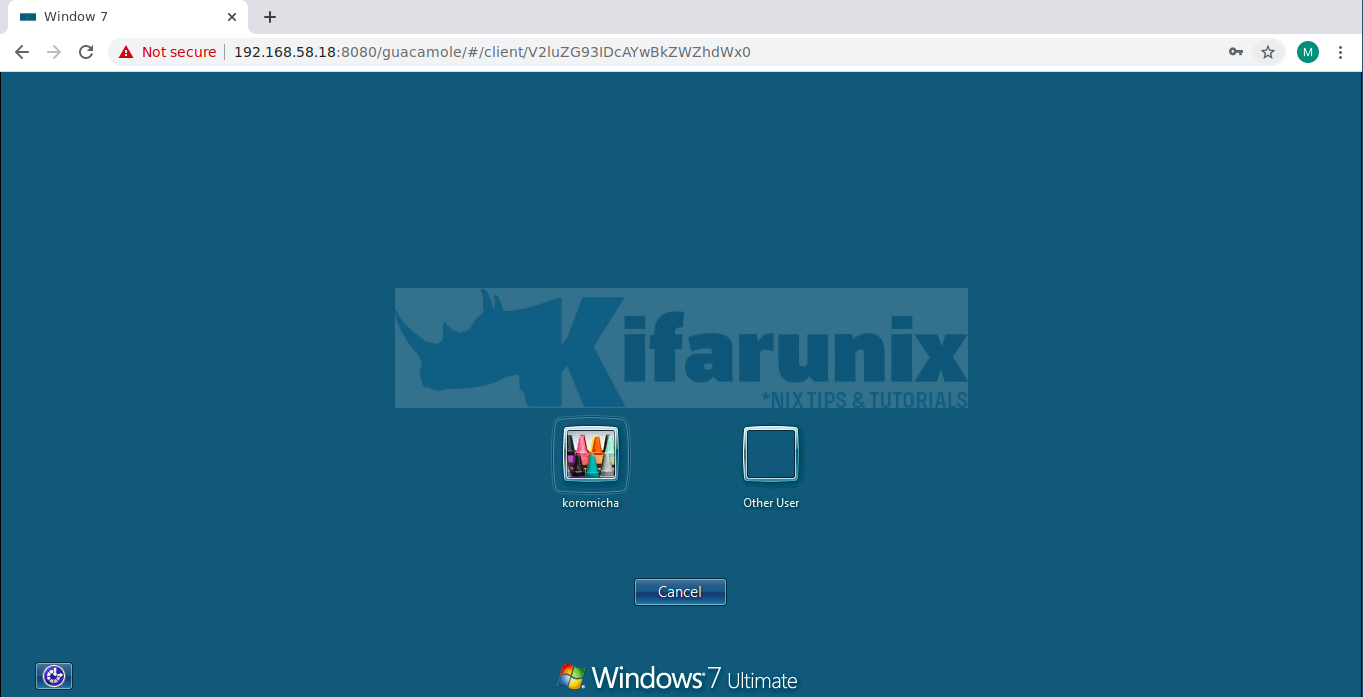
If windows login fail with the error;
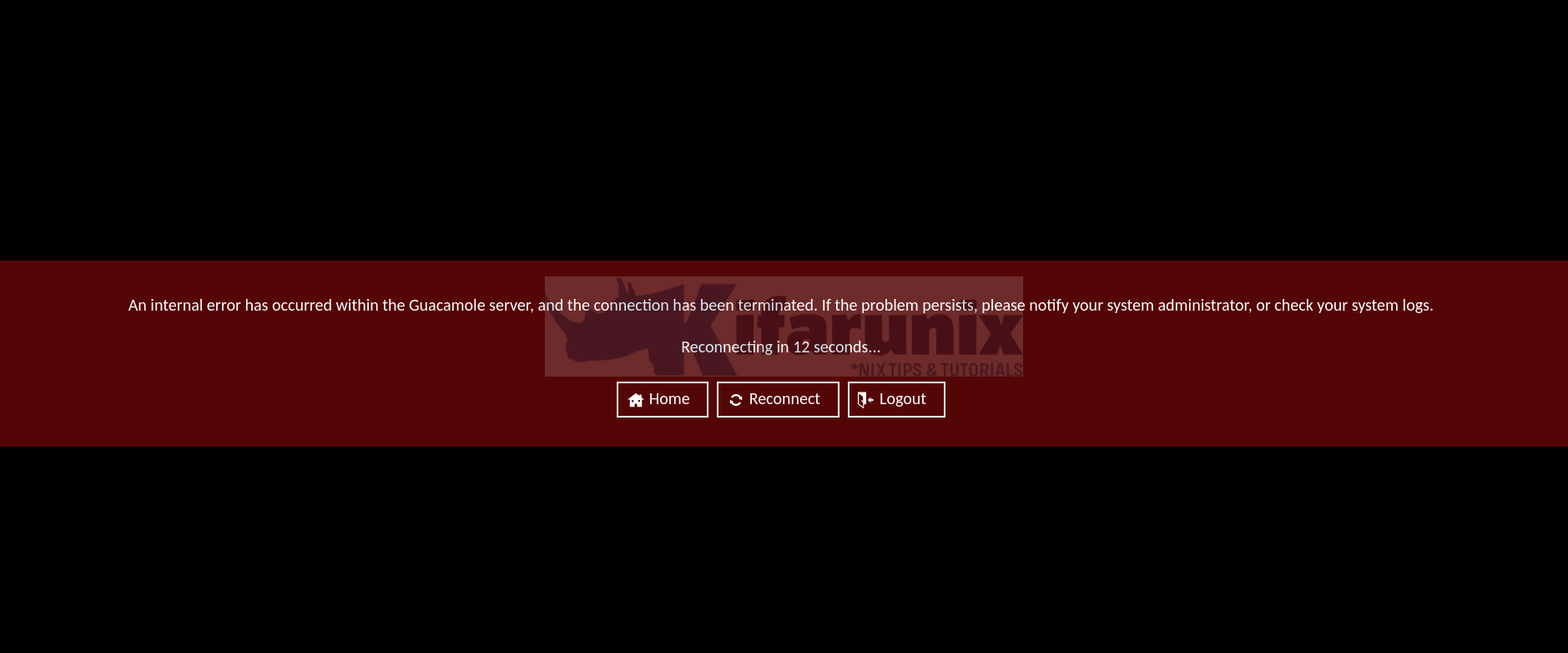
Guacamole Windows RDP Connection Issue
The follow the guide below to fix it;
You can now add more connections to your Guacamole. That marks the end of our guide on install Apache Guacamole on Ubuntu.
Read more on Guacamole.
上一篇
Utilizing Rclone to easily access Cloudflare R2 Bucket | Austin Noll | Notion
下一篇
Install Edge browser via Powershell | Some Notes on the Machines
- Author:NetSec
- URL:https://notes.51sec.org/Collections/252fc8e8-dcfd-8101-8f53-f13807288de8
- Copyright:All articles in this blog, except for special statements, adopt BY-NC-SA agreement. Please indicate the source!


